Activity Recording and Statistics
Overview
Hindsight automatically records foreground activity and time spent, with daily, weekly, monthly, and historical statistics. Basic time tracking works without screenshots; screenshots and OCR are optional.
Statistics
Daily
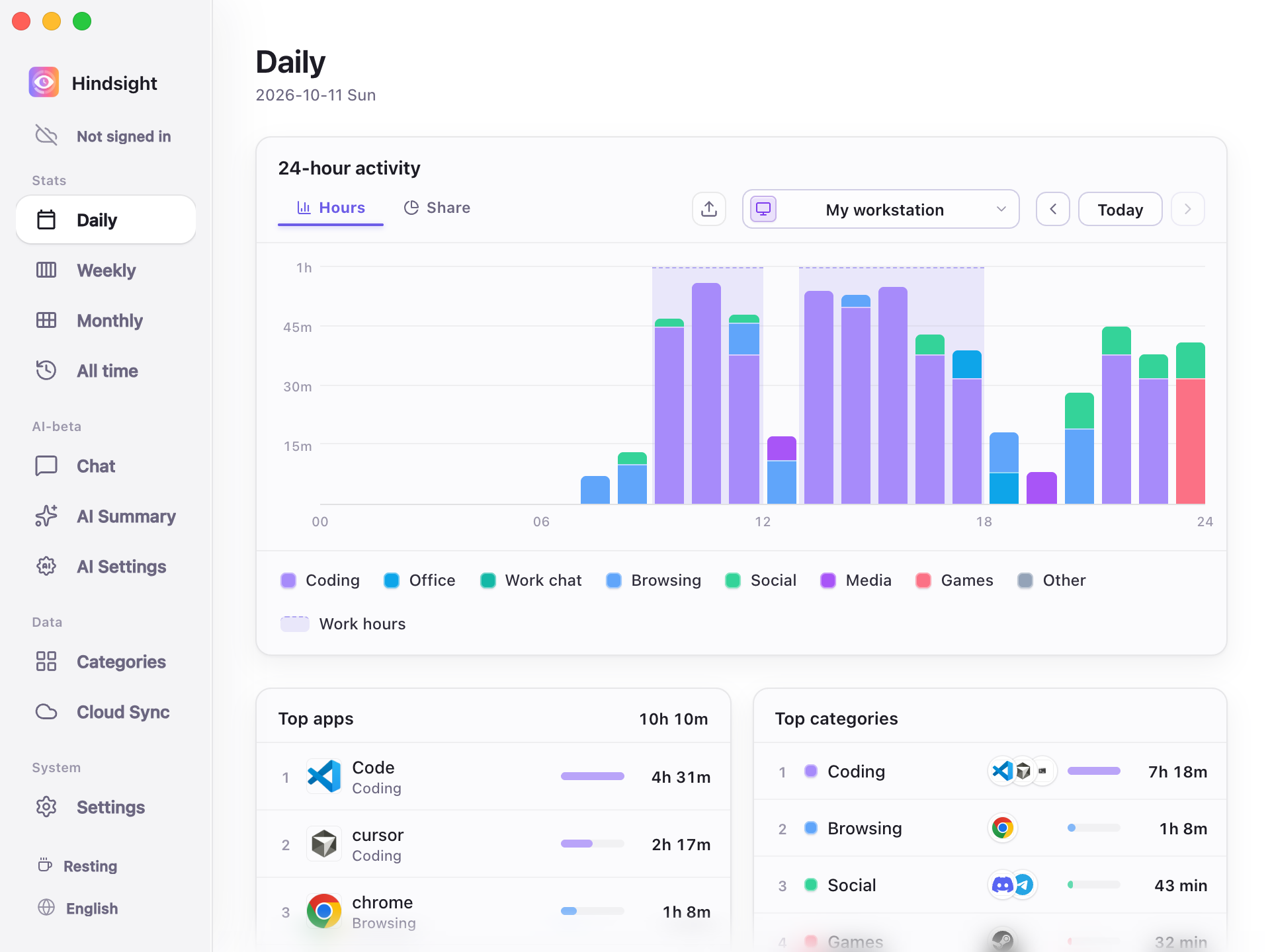
Daily (Hours view)
Weekly
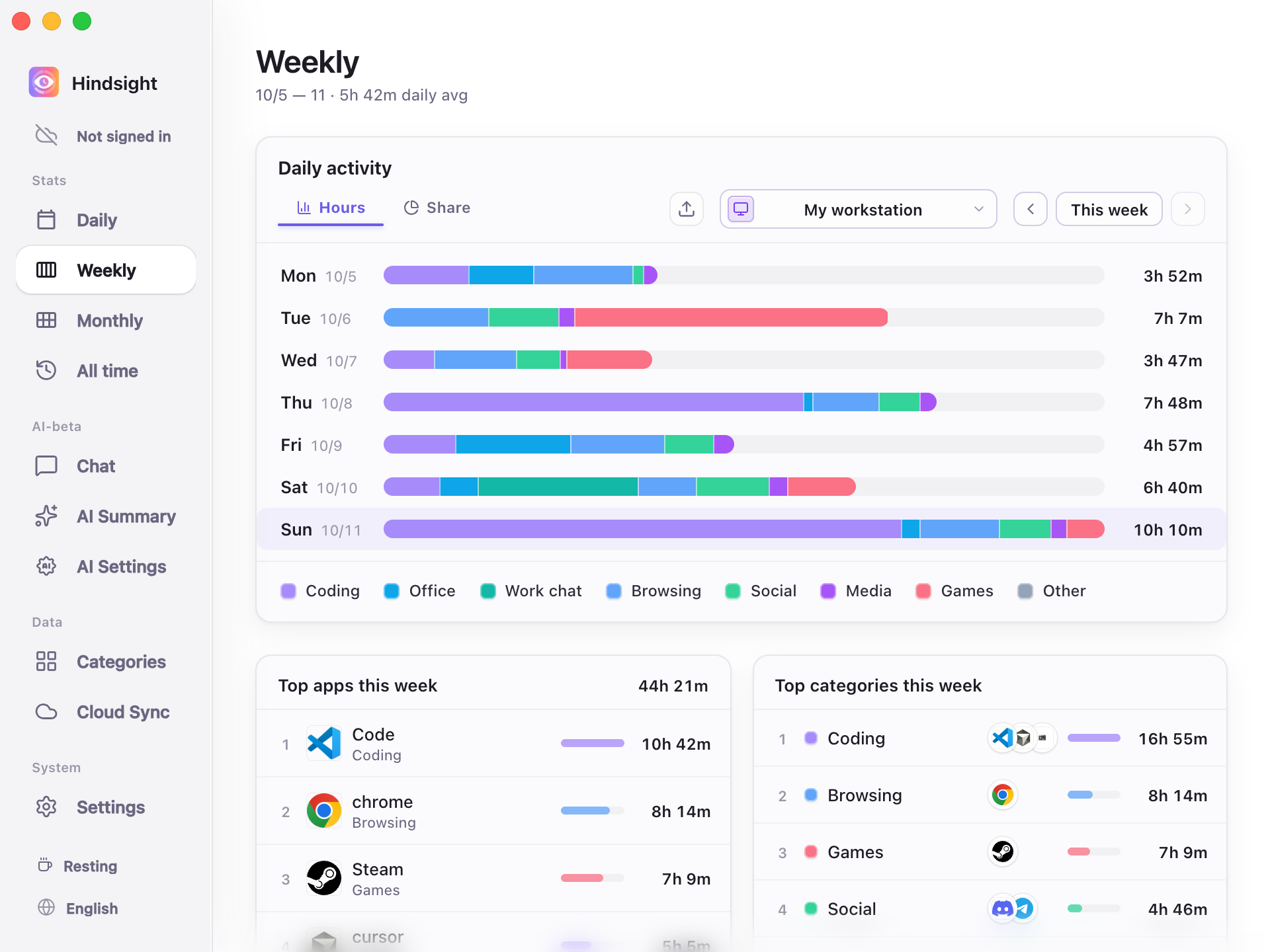
Weekly (Hours view)
Monthly
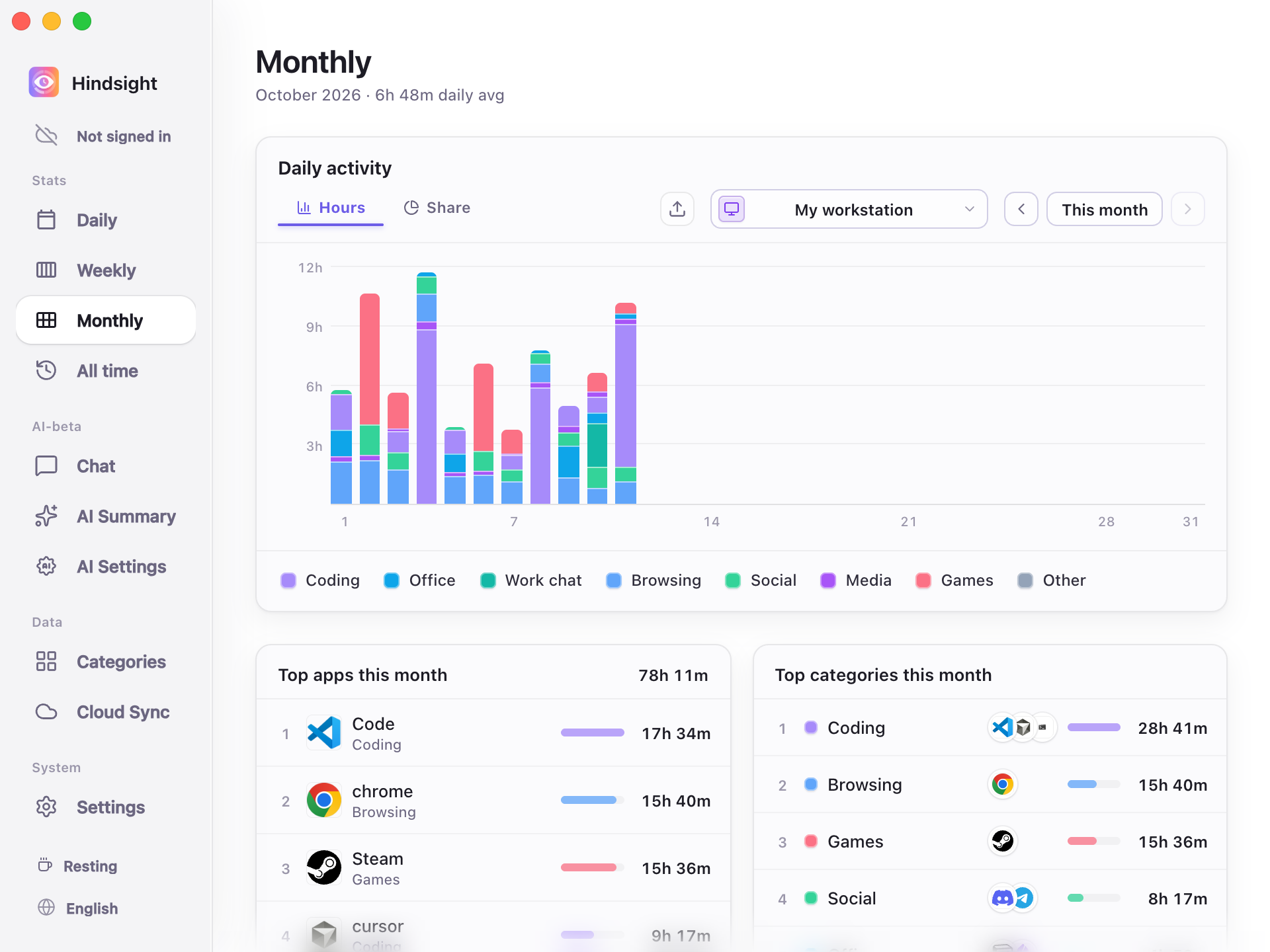
Monthly (Hours view)
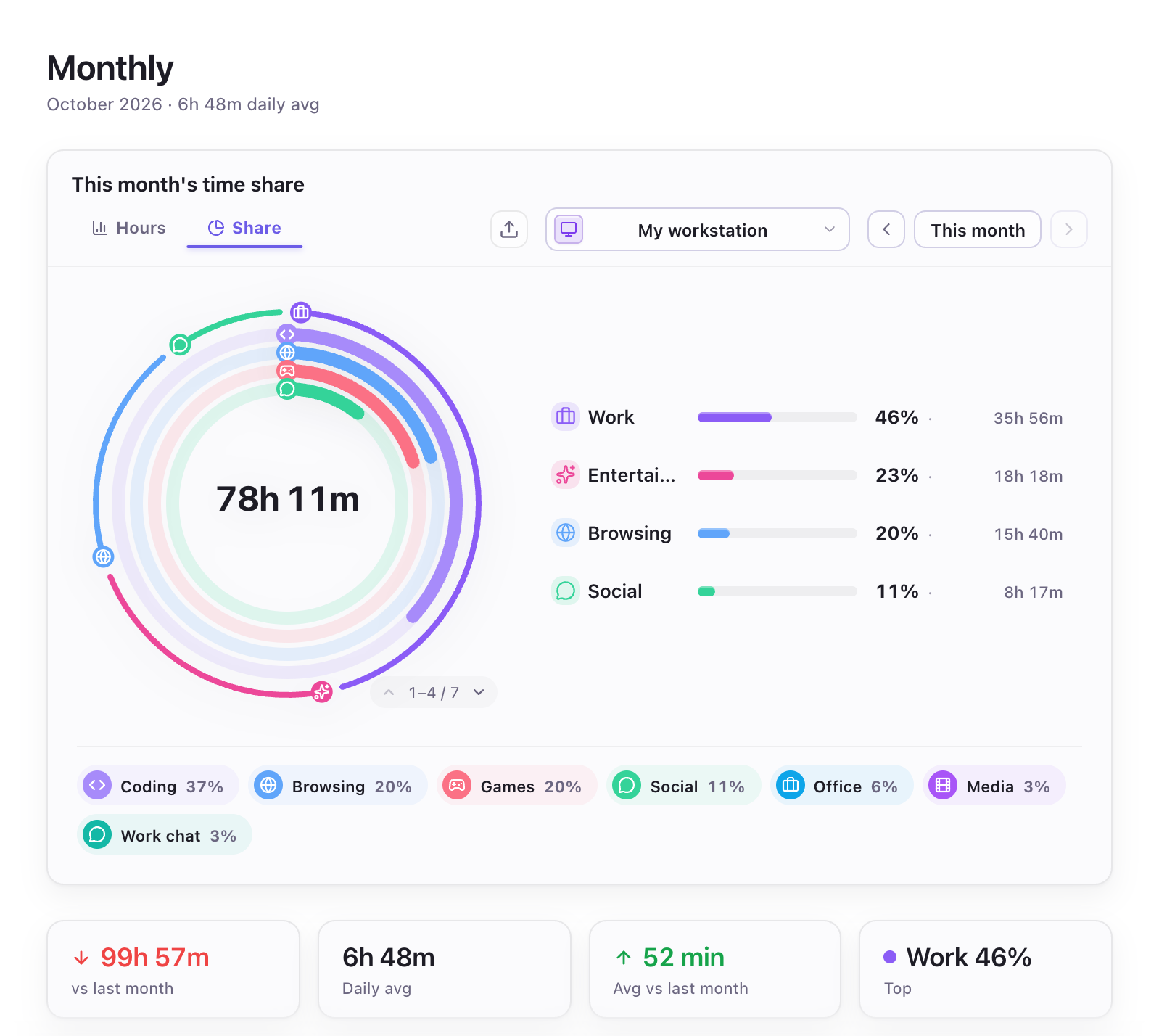
Monthly (category shares and statistics)
The outer ring shows super-category shares (such as “Work”, “Entertainment”, “Browsing”, and “Social”). The inner ring shows category shares (such as “Coding”, “Office”, and “Work chat” under “Work”).
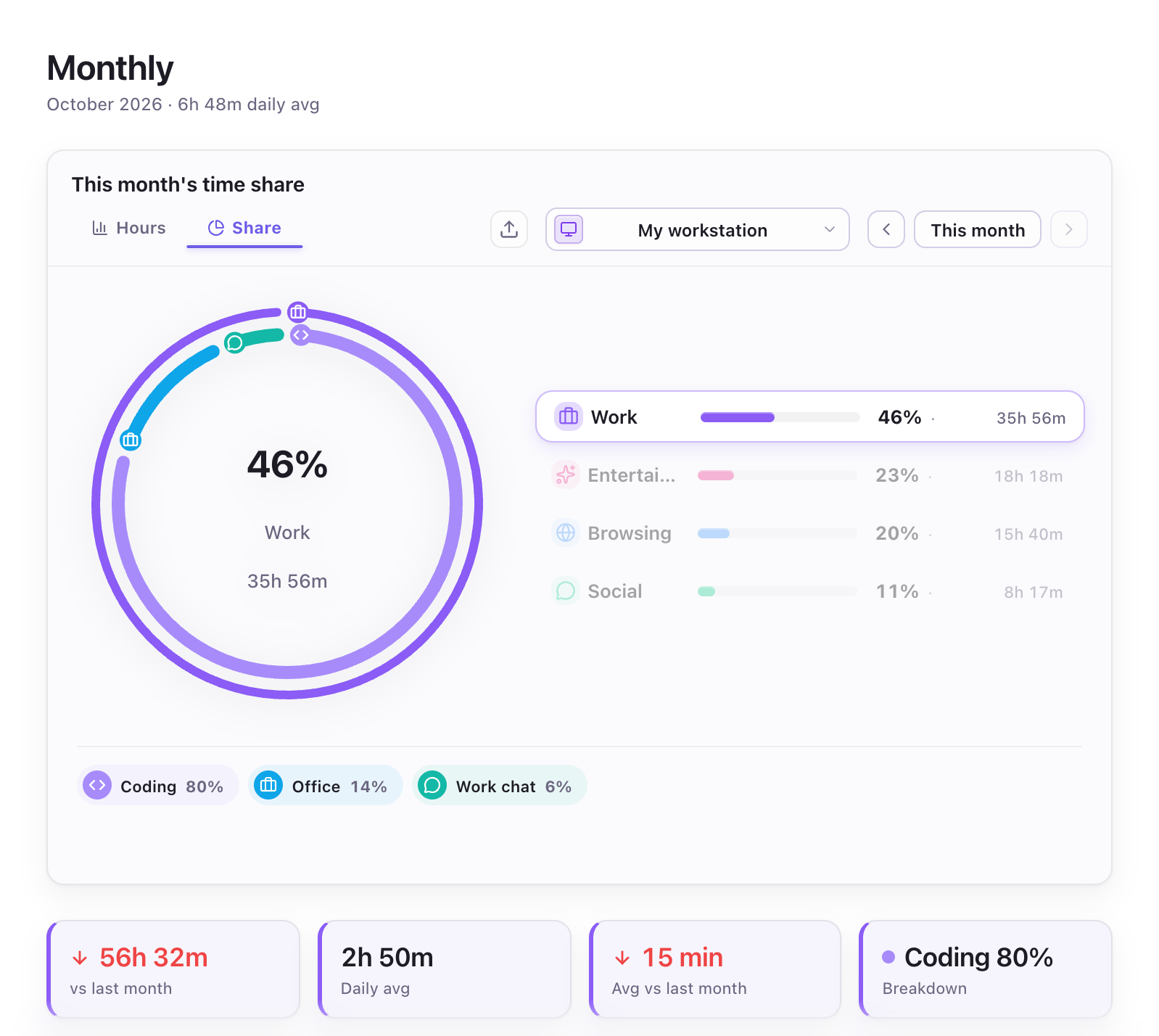
Monthly (Share view — Selected super-category)
Selecting a super-category narrows the ring and the labels below to its breakdown. Here, “Work” is selected: Coding accounts for 82%, Office for 11%, and Work chat for 7%. The four cards below show, from left to right: the change in work time from last month (-60h 42m), average daily work time this month (2h 48m), the change in that daily average from last month (-19m), and the largest category within Work (Coding, at 82%).
All time
The yearly heatmap shows long-term activity patterns, while the monthly calendar shows time spent each day. You can also view statistics for a specific date range or review an individual app's history.
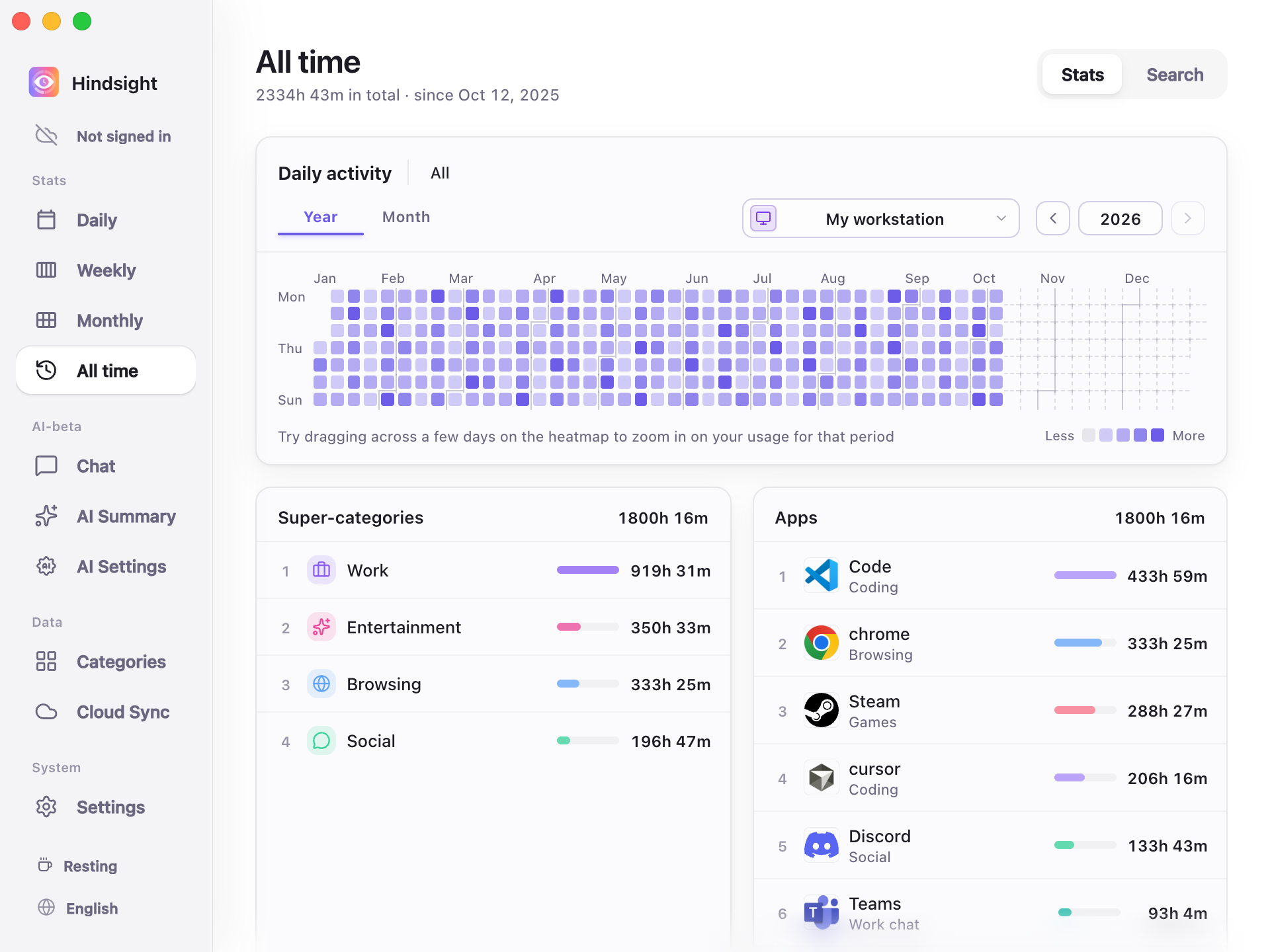
All time (Year view)
Darker cells indicate more time spent that day. Drag across the heatmap to zoom into a date range. Selecting a day updates the super-category and app rankings below to show only that day.
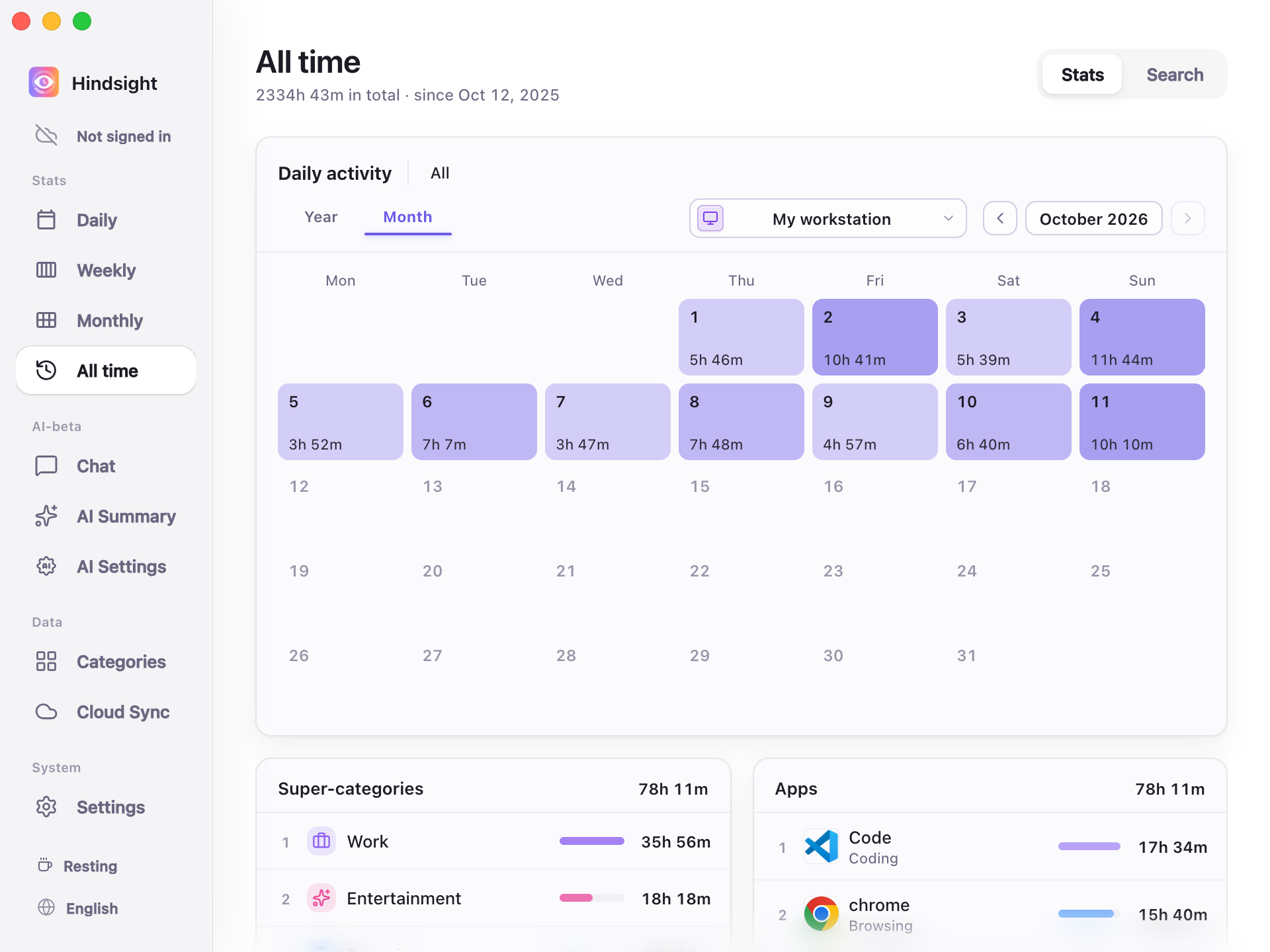
All time (Month view)
Activity Capture
- Activity recording: Records the focused foreground app and time spent in it.
- Idle timeout: Stops counting time after 3 minutes of keyboard and mouse inactivity by default.
- Work hours: When enabled, captures activity only during the configured hours. Outside those hours, the sidebar shows “Resting” and activity capture stops.
- Capture control: Click “Stop capture” in the sidebar to stop activity capture; click again to resume.
- Website domains: Enabled by default to record and categorize visited websites. For example, YouTube visits can be assigned to a “Video” category.
- Multiple devices: Each device records its own activity. After syncing, you can view all devices together or a single device.
Defaults
| Setting | Default | Description |
|---|---|---|
| Enable capture | On | - |
| Capture interval | 30 seconds | - |
| Idle timeout | 3 minutes | - |
| Enable work hours | Off | When enabled, records activity only during the configured hours |
| Record website domains | On (subject to browser support, permissions, and privacy settings) | - |
| Enable screenshots | Off | - |
| Screenshot retention | 7 days | Screenshots are automatically deleted after this period to save storage space |